Payment Link
Payment Link enables you to get paid without doing any integration and development. Embed Payment Link in emails/invoices/messages/short-links/QR codes and send to your clients to pay you.
Generating Payment Link URLs Manually
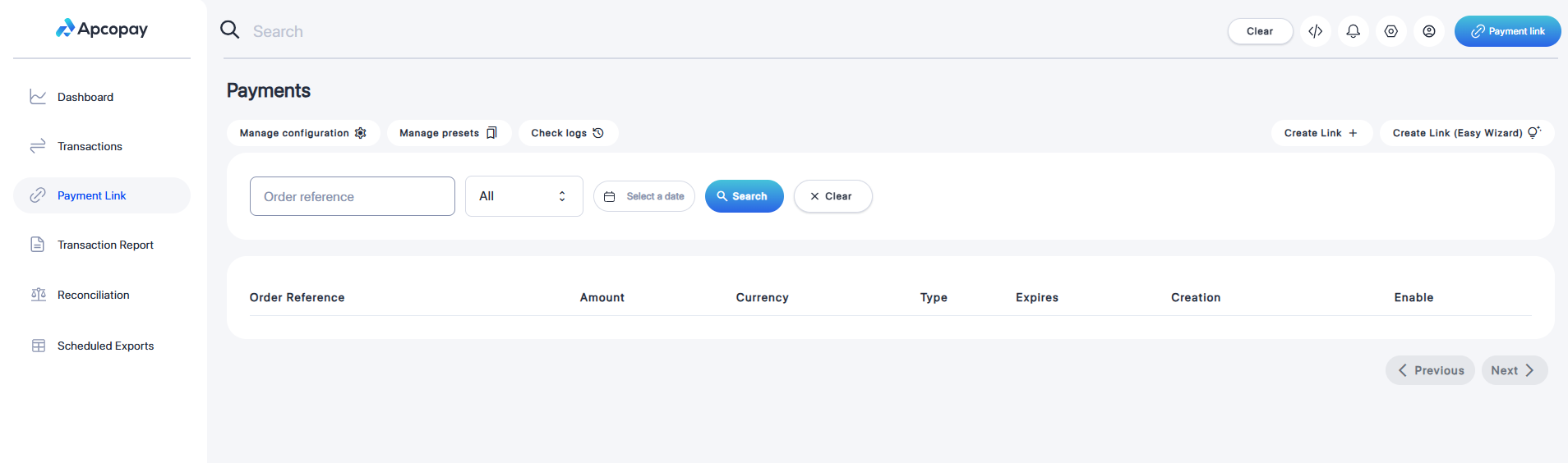
You can easily generate payment links directly from the Merchant Portal.
- Navigate to Payment Links from the side menu.
- Click on “Create Link”.
- Fill in the required Payment Link details.
Once completed, your payment link will be ready to use.
👉 Note: You can create multiple payment links as needed.
In just 4 steps you can create the Payment link.
Transaction data
.png)
Client Data
This section can be completed either by you (the Payment Link creator) or by the client.
If you enable “Allow Client Edit”, the client will be able to fill in or update all fields themselves. In this case, you can leave the fields empty when creating the Payment Link.
👉 Tip: Use this option if you want the client to enter their own details during the payment process.
.png)
Advanced Settings
You can configure email notifications for each payment link to keep all parties informed.
Admin Emails
All admin email addresses will receive a notification when a payment link is created.
Recipient Emails
All recipient email addresses will receive a confirmation once the payment has been successfully completed.
👉 Example:
If an admin adds admin@company.com and user@client.com
- The admin will be notified when the link is created.
- The user will automatically receive a confirmation once the payment is completed.
(1).png)
Configuration
This section allows you to configure the behaviour and availability of your payment link.
- Language
Select the language displayed on the payment page. - Enable Payment Link
Turn this on to activate the payment link. If disabled, the link will not be usable. - Show Terms and Conditions
Enable this option to display terms and conditions to the client before completing the payment. - Show Client Info
When enabled, client-related information will be visible on the payment page. - Allow Client Edit
Allows the client to modify the fields in the payment form. - Can Be Used Only Once
Restricts the payment link until a successful transaction is processed - Never Expires
Keeps the payment link active indefinitely. - Validity Period
Set a specific expiration date for the payment link. - Is Test
Enable this option to use the payment link in test mode.
.png)
✅ Payment Link Created
Your Payment link has been successfully created and is ready to use.
You can now:
- Copy the URL to share the payment link directly with your client.
- Generate a QR Code for easy access, allowing clients to scan and open the payment page instantly.
.png)